Towndl is a safe computer for kids. Towndl gives a child a whole computer, and a grown-up stays in charge of that computer. This page explains how a grown-up sets Towndl up for a child and looks after Towndl afterward.
Setting Towndl up for a child
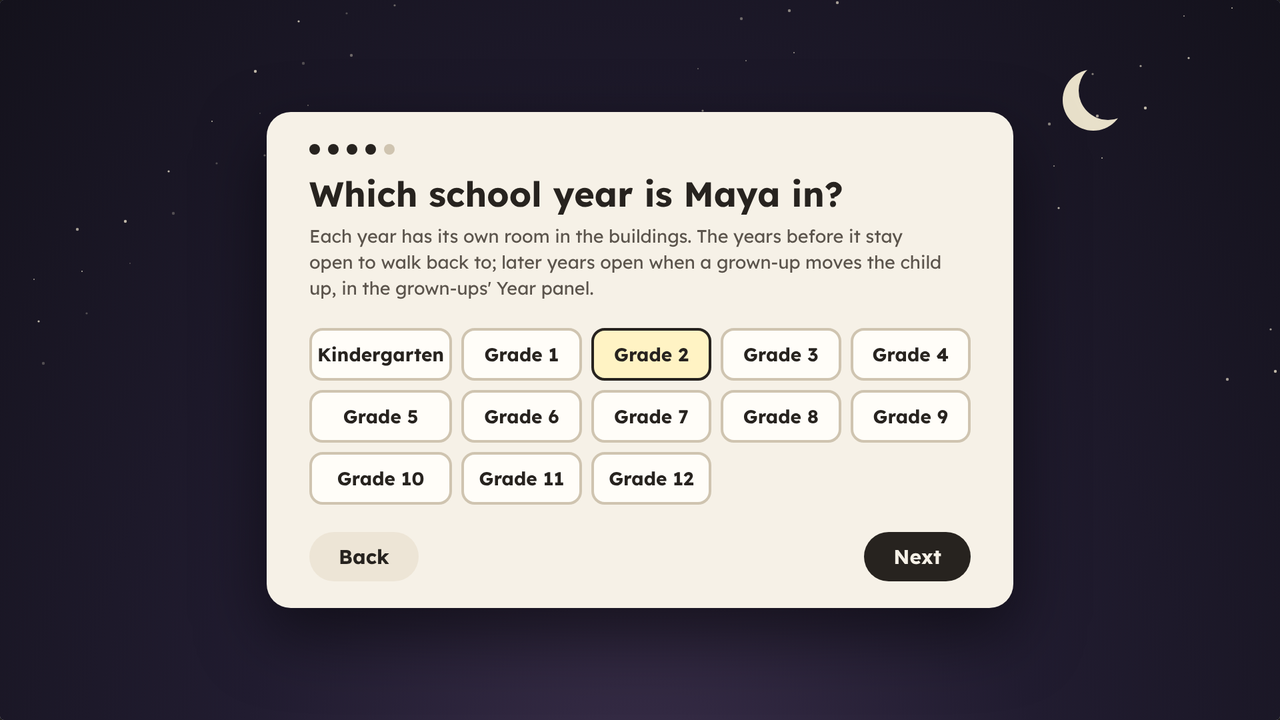
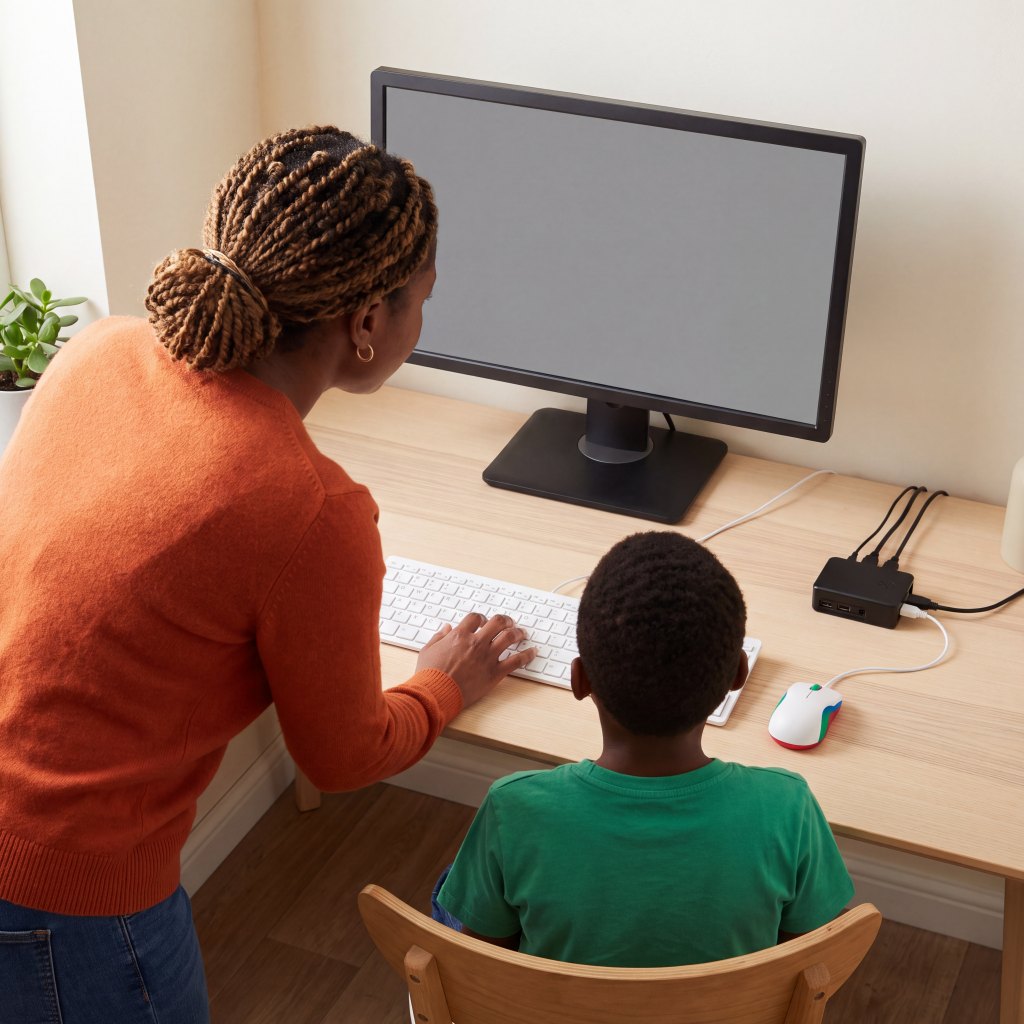
When Towndl starts for the first time, Towndl asks a grown-up three things: a four-digit PIN, the child’s first name, and the child’s school year. The name is optional. The set-up takes about a minute.
The child then sees a street with four buildings: a Library, a Museum, a Classroom, and a Playground. Taking a book off a shelf opens a program, and pressing Done puts the program back. Only one program is open at a time. The Get it page lists the parts and the steps.
The grown-ups’ menu
A small key on the street opens the grown-ups’ menu. The menu opens only after the PIN is typed.
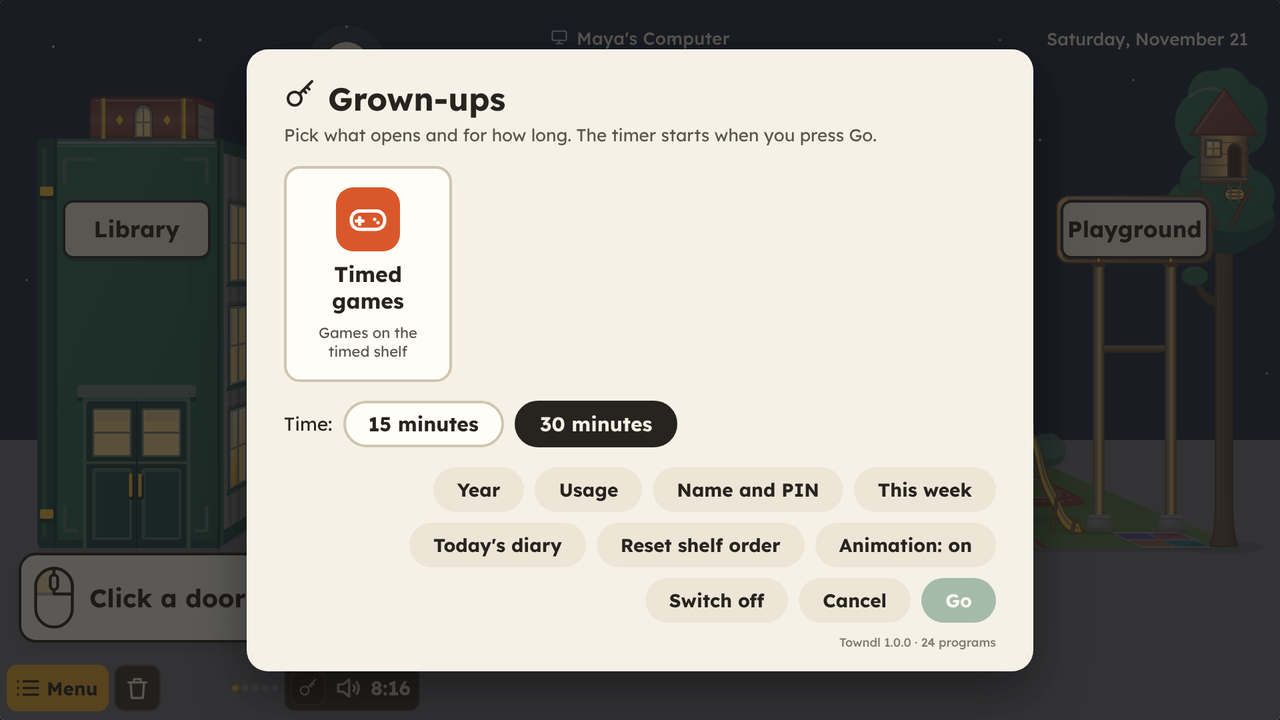

- Year. A grown-up approves the next school year. Towndl never moves the child up by itself.
- Timed games. A grown-up can open the four big games for 15 or 30 minutes.
- Usage. A grown-up can see which programs were used and for how long.
- This week. A grown-up can put two short lines on the screen in the Classroom.
- Name and PIN. A grown-up can change the child’s name on the screen and choose a new PIN.
- Switch off. A grown-up can switch the computer off from the menu.
How Towndl grows, year by year
- Each school year, from Kindergarten to Grade 12, has a room of its own. The earlier years stay open for the child to walk back to.
- From Grade 1, a new room opens with two programs. The other programs open one at a time over the following days.
- From Grade 4, a grown-up can let the four big games fill the whole screen.
- From Grade 6, a grown-up can turn on a desktop view that works more like an ordinary computer.
What Towndl keeps, and what Towndl never keeps
- Kept on the computer. Towndl keeps the child’s pictures, writing, songs, and films. Towndl also keeps which programs were used and for how long.
- Never kept. Towndl never keeps what the child looked up, typed, or did inside a program.
- Never sent. Towndl sends nothing anywhere. Towndl has no accounts, no cloud, and no analytics.
The limits of Towndl
- A four-digit PIN keeps small hands out. A four-digit PIN does not stop a determined adult.
- The child’s programs can reach other devices on the home network, such as a printer.
- A grown-up installs security updates by hand from time to time.
- Towndl is a tool for a family. Towndl does not replace a grown-up’s attention.
The full guide for grown-ups comes with Towndl, in the file docs/PARENTS.md.
Towndl for grown-ups themselves
Towndl starts as a computer for kids. Grown-ups who want a simple, offline computer of their own are also a group that Towndl is being planned for.
Future versions of Towndl will offer different layouts, called Towns. The Town for grown-ups is called Home Town. A grown-up will be able to give Home Town a name of their own. Home Town is not built yet.